
Requirements
Homeio has two install paths. The install script sets it up directly on the machine, as a system service. Docker Compose runs it in two containers, one for Homeio and one for its PostgreSQL database.
| Install script | Docker Compose | |
|---|---|---|
| Operating system | Debian, Ubuntu or Raspberry Pi OS (anything with apt-get) | Any system that runs Docker and Docker Compose |
| CPU | x86_64 or 64-bit ARM (aarch64) | Whatever the image runs on |
| Access | Root, through sudo | A user allowed to run Docker |
| Web interface | Port 80, through Nginx | Port 12026 |
| Updates from the UI | Yes | Pull the new image instead |
Homeio runs on a Raspberry Pi 4 or 5, an N100 mini PC or an old desktop. The Docker install caps Homeio itself at 1 GB of memory, and 4 GB of RAM leaves room for a few apps. Use a 64-bit OS on a Raspberry Pi.
Install with the script
On a fresh Debian, Ubuntu or Raspberry Pi OS machine, run:
curl -fsSL https://get.homeio.app | sudo bashThe script installs Docker if it is missing, installs Homeio and PostgreSQL, sets Homeio up as a service and puts it behind Nginx on port 80. It also names the machine homeio and announces it on your network, so you can reach it at homeio.local.
When it finishes, it prints two addresses. Open either one in a browser:
http://homeio.local
http://your-server-ip
get.homeio.app serves the same file as scripts/install.sh in the repository. Read it before you pipe it into sudo bash if you like to know what runs as root.
Install script options
Set options as environment variables after sudo. For example, to serve the interface on port 8080 and name the machine nas:
curl -fsSL https://get.homeio.app | sudo HOMEIO_PUBLIC_PORT=8080 HOMEIO_HOSTNAME=nas bash| Variable | Default | What it does |
|---|---|---|
HOMEIO_HOSTNAME | homeio | Machine name. The interface is reachable at <name>.local. |
HOMEIO_PUBLIC_PORT | 80 | Port Nginx serves the interface on. |
HOMEIO_RELEASE_TAG | none | Set to latest, or a tag such as v1.9.7, to install that release instead of the main branch. |
HOMEIO_DRY_RUN | false | Set to true to print every step without changing anything. |
HOMEIO_VERBOSE | false | Set to true to show the output of each step. |
Install with Docker Compose
Docker Compose works anywhere Docker runs. PostgreSQL ships in the same compose file, so there is nothing else to set up:
git clone https://github.com/doctor-io/homeio.git
cd homeio
docker compose up -d
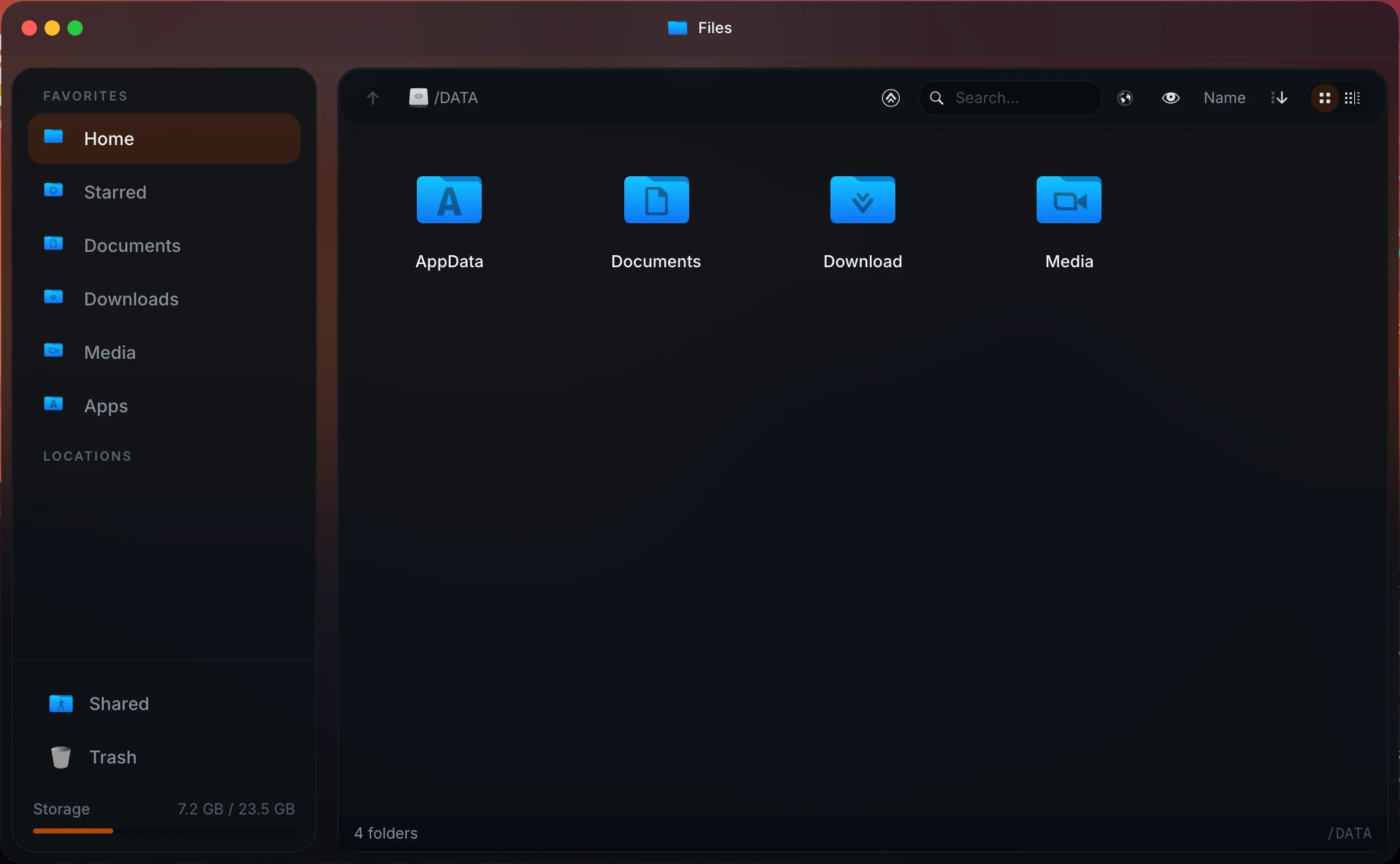
Then open http://your-server-ip:12026. Homeio mounts the Docker socket to manage your containers and keeps files and app data under /DATA on the host. Set DATA_ROOT to use another folder.
The session secret is generated on first start and kept in a Docker volume. To pin your own, set AUTH_SESSION_SECRET to a random string of 32 characters or more before you start the stack.
Create your account
The first time you open Homeio, it asks you to create an account. That account is the administrator, and registration closes as soon as it exists: Homeio has one account per installation.
From there, the documentation walks through installing apps, sharing folders, backups and remote access.
Update Homeio
On a script install, open Settings → Updates and install the new version from there, or run the update script:
curl -fsSL https://raw.githubusercontent.com/doctor-io/homeio/main/scripts/update.sh | sudo bashOn Docker Compose, pull the new image and recreate the container from the folder you cloned:
docker compose pull && docker compose up -dUninstall Homeio
The uninstall script removes Homeio and keeps your data:
curl -fsSL https://raw.githubusercontent.com/doctor-io/homeio/main/scripts/uninstall.sh | sudo bashTo remove everything, data included, add --purge --yes. There is no undo:
curl -fsSL https://raw.githubusercontent.com/doctor-io/homeio/main/scripts/uninstall.sh | sudo bash -s -- --purge --yesOn Docker Compose, docker compose down stops Homeio and keeps its volumes; docker compose down -v deletes them too.