
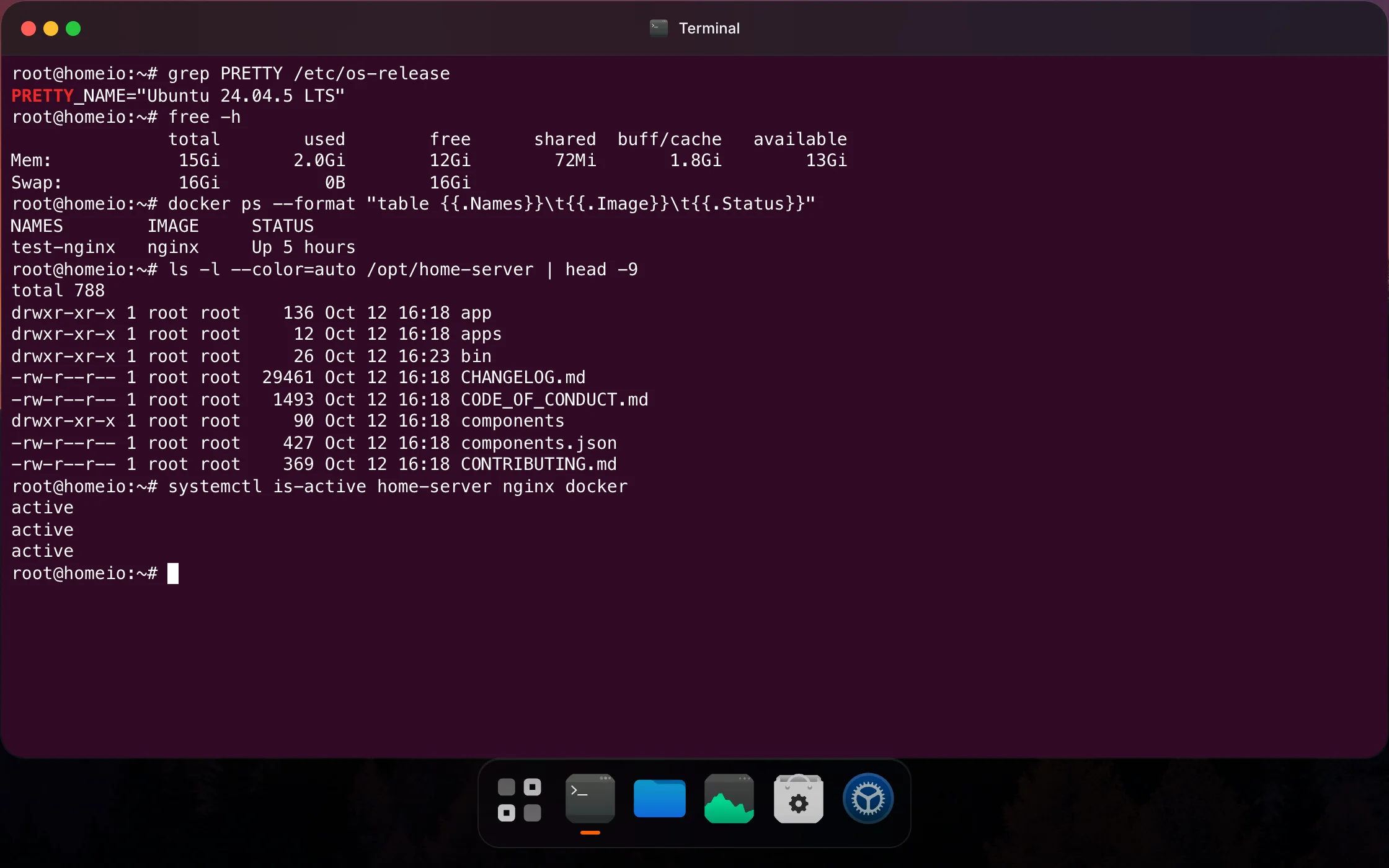
How a web terminal works
A web terminal is a terminal emulator drawn inside a web page, connected over a WebSocket to a process on the server. On the server side, that process usually owns a pseudo-terminal (a PTY) running a normal shell such as bash. What you type travels to the shell, and what the shell prints travels back to the page.
The consequence is simple and worth keeping in mind for the rest of this guide: a full web terminal is a shell on your server that anyone who gets past the login page can use. It is exactly as secure as that login page, the connection to it, and the network it is reachable from.
SSH solves the same problem with a dedicated protocol, and after decades of scrutiny it is the most battle-tested way to get a shell on a remote Linux machine. The question is not which one to use, but which one to use for what, and how to reach either safely.
Your options, from plain SSH to dashboards
- Plain SSH. Every Linux distribution ships an SSH server, and macOS, Linux, and Windows 10 and later include the client. On a phone, apps such as Termius or Blink Shell do the same. It gives you a full shell, sudo, editors, and file transfer with scp or sftp.
- Tailscale SSH. If the server is on your tailnet, Tailscale can handle SSH authentication with your tailnet identity instead of keys you manage yourself.
- Cockpit. A web admin console for Linux from the Red Hat ecosystem, packaged in Debian and Ubuntu. It includes a full terminal, plus services, logs, storage, and updates, on port 9090.
- ttyd and Wetty. Small tools that expose a terminal in the browser and nothing else. Useful when you only want the shell, but you have to put authentication and HTTPS in front of them yourself.
- Self-hosted web SSH clients. Sshwifty and Apache Guacamole run on one machine and open SSH sessions to others from a browser tab. Guacamole also does RDP and VNC. They suit a homelab with several servers, and they hold SSH credentials, so they need the same protection as the servers themselves.
- Dashboard terminals. Server dashboards include a terminal next to their other tools. Portainer and Dockge open a console inside a container. Homeio opens a full shell on the server itself, or inside any app's container, described in detail below.
Most people end up with two: SSH for real administration, and a browser terminal for quick checks from whatever device is at hand.
What Homeio's terminal can do
Since Homeio 1.10.2, the Terminal window is a full login shell on the server, the same one an SSH session gives you. On a script install it runs as root, so apt, git, nano, vim, htop, tmux, pipes, redirects and anything else that runs in a terminal works, with colours, scrollback and clickable links. Resizing the window resizes the shell, so full-screen programs redraw to fit.
- Open in Terminal on an app opens a shell inside that app's container, bash when it has one and sh otherwise.
- Ctrl+C interrupts the running command. Copy and paste are Ctrl+Shift+C and Ctrl+Shift+V, as in Ubuntu's terminal.
- When the shell exits, Enter starts a new one.
- A session closes after 15 minutes without activity and after one hour in any case, and each user can have two open at once. Run long jobs inside
tmuxso they survive that. - In the Docker image the Terminal keeps the older command terminal, which runs one command at a time from an allow list. The full shell needs the script install.
For editing files you can use nano or vim now, but Homeio's file manager also has a code editor built in, which is often more comfortable in a browser.
A root shell in a browser tab is exactly as safe as the login in front of it. Homeio only opens the shell for a signed-in user and only from its own pages: a connection from another site, or from another app on the same server, is refused even when the browser holds a valid session. Still, protect Homeio's login the way you would protect SSH, with a strong password and two-factor login.
A five-command check when an app is down
Most "my app stopped working" moments on a home server have one of four causes: the container crashed, the disk is full, memory ran out, or the network is down. These commands check all four in under a minute, and every one of them runs in Homeio's terminal as well as over SSH:
docker ps -a
docker logs --tail 50 immich_server
df -h
free -h
ping -c 3 1.1.1.1- 1.
docker ps -ashows whether the container is running, restarting in a loop, or exited, and with which exit code. - 2.
docker logs --tail 50shows the last thing the app said before it stopped. Replaceimmich_serverwith your container's name. - 3.
df -hcatches a full disk, the most common silent cause: databases stop writing and apps fail in confusing ways. Look for any filesystem at 100%. - 4.
free -hshows whether memory, and swap, is exhausted. - 5.
ping -c 3 1.1.1.1tells you whether the server can reach the internet at all, which rules the network in or out.
If the cause was temporary, docker restart followed by the container name brings the app back. If it crashes again, the logs from step two are what to search for or paste into a forum post.
When to reach for SSH instead
A full browser terminal covers most daily administration, but keep SSH set up anyway. You will want it for:
- Recovery. When the dashboard itself is down, SSH is how you get back in to find out why.
- Long jobs, such as a large
rsyncor a first backup. Browser sessions have time limits; SSH insidetmuxdoes not care about a closed laptop. - File transfer with
scp,sftporrsyncfrom your own machine. - Port forwarding, for reaching a service that only listens on the server's localhost.
- Scripts and automation that run from another machine.
If you want a full terminal in the browser
Homeio's terminal is a complete shell. If you don't run Homeio and want one in a browser tab, Cockpit is the easiest well-maintained option on Debian and Ubuntu:
sudo apt install cockpitOpen https://your-server-ip:9090 and sign in with your normal Linux user; the Terminal page is a real shell. Accept the self-signed certificate warning on first visit, and reach Cockpit only from your home network or over a VPN, never through a forwarded port.
For long jobs in any terminal, browser or SSH, start them inside tmux so a closed tab or a dropped connection doesn't kill them:
tmux new -s backup      # start a named session
# run the long command, then press Ctrl+B, then D to detach
tmux attach -t backup   # reconnect later, from any terminal
Set up SSH keys and turn off passwords
Password logins are the reason SSH servers get brute-forced. Keys are both safer and more convenient. On your laptop, create a key and copy it to the server:
ssh-keygen -t ed25519 -C "laptop"
ssh-copy-id you@your-server-ip
Log in once with the key to confirm it works. Then, on the server, turn off password and root logins with a drop-in file, which survives package updates better than editing the main config:
PasswordAuthentication no
KbdInteractiveAuthentication no
PermitRootLogin no
sudo sshd -t && sudo systemctl restart sshKeep your current session open and test a new login from a second terminal before you close it. If something is wrong, the open session is how you fix it without walking to the server with a keyboard.
Reach it from outside without opening ports
Forwarding port 22, or the port of any web terminal, from your router to the server puts a login prompt on the public internet, where it will be probed within hours. There are better ways to reach home:
- A mesh VPN such as Tailscale, or plain WireGuard. Your phone and laptop join a private network with the server, and SSH, dashboards, and apps work as if you were at home. Nothing is exposed publicly. Homeio can install and activate Tailscale from its Settings.
- A tunnel with an access policy, such as Cloudflare Tunnel with Cloudflare Access, for browser-based tools you want to reach without a VPN client. Put the identity check in front of the tunnel, not just the app's own login.
Whatever the route, turn on two-factor login for any web interface that can run commands on the server. Homeio supports TOTP codes from any authenticator app, with backup codes, under Settings, Users & Access.