
Homeio 1.10.2: a real terminal in the browser
Until now, fixing something on the server meant leaving Homeio for an SSH client. 1.10.2 turns the Terminal window into a real shell on the server, and lets you give the containers you started yourself a proper name, icon and link on the desktop.
- Current release
- v1.10.2
- Released
- 2026-10-12
- Licence
- AGPL-3.0
A shell on your server, in the browser.
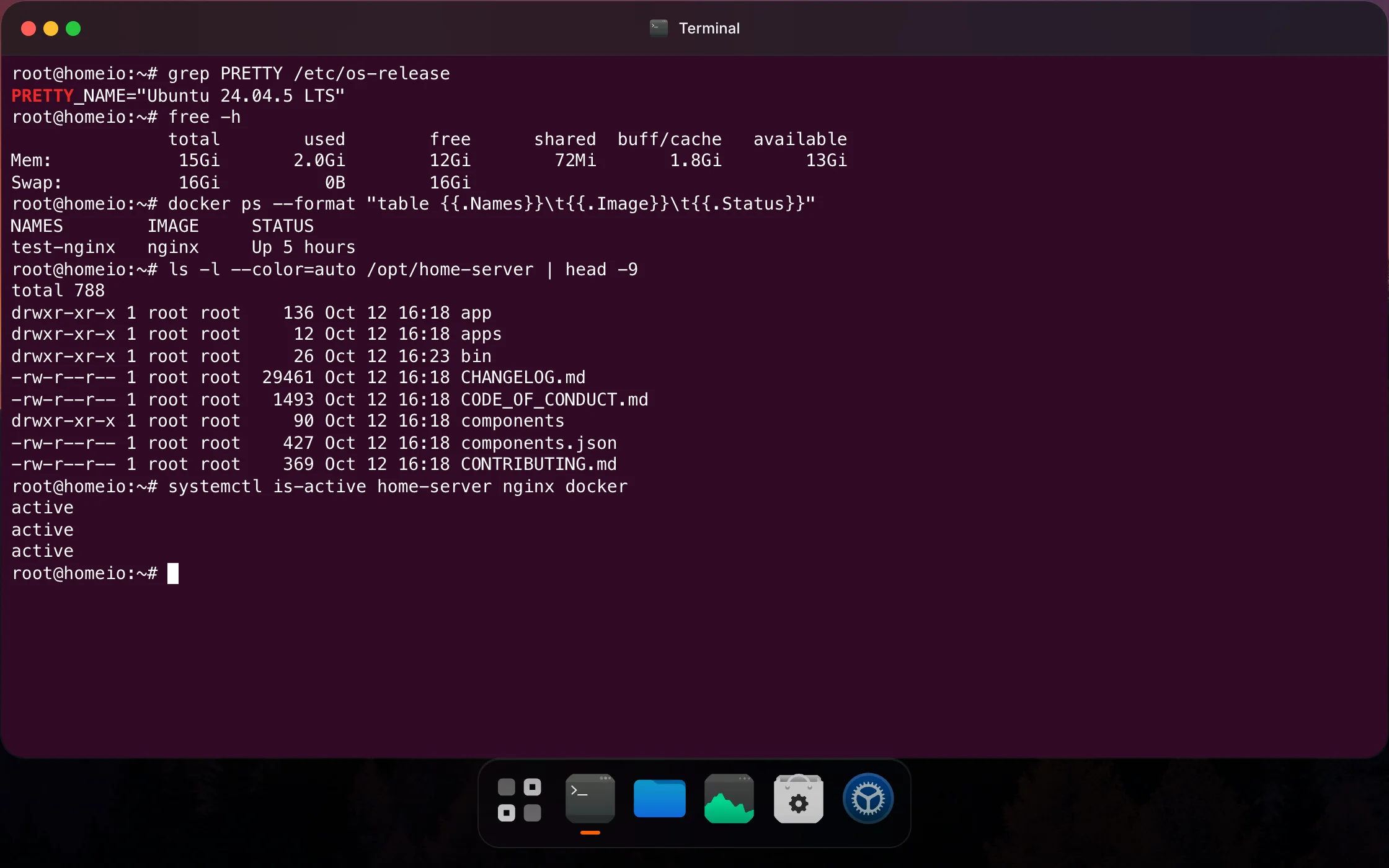
It uses the same login shell an SSH session would, so your profile, aliases and PATH come with it.
The shell an SSH login would give you
The Terminal window used to run one command at a time from an allow list. It now opens a full login shell on the server, root on a script install, so git, apt, nano, vim, top and anything else that runs in a terminal works, with colours, scrollback and clickable links.
A shell inside any container
Open in Terminal on an app drops you into a shell inside its container, bash when it has one and sh otherwise. Close the window and the next Terminal opens on the server again.
Keys that behave like a terminal
Ctrl+C interrupts, Tab completes, and copy and paste are Ctrl+Shift+C and Ctrl+Shift+V, as in Ubuntu's terminal. Resizing the window resizes the shell, so full-screen programs redraw to fit. When the shell exits, Enter starts a new one.
Containers you started yourself, named your way.
Since 1.9, containers Homeio did not deploy show on the desktop with a dashed outline. They can now look and link like the apps around them.
Your name and icon
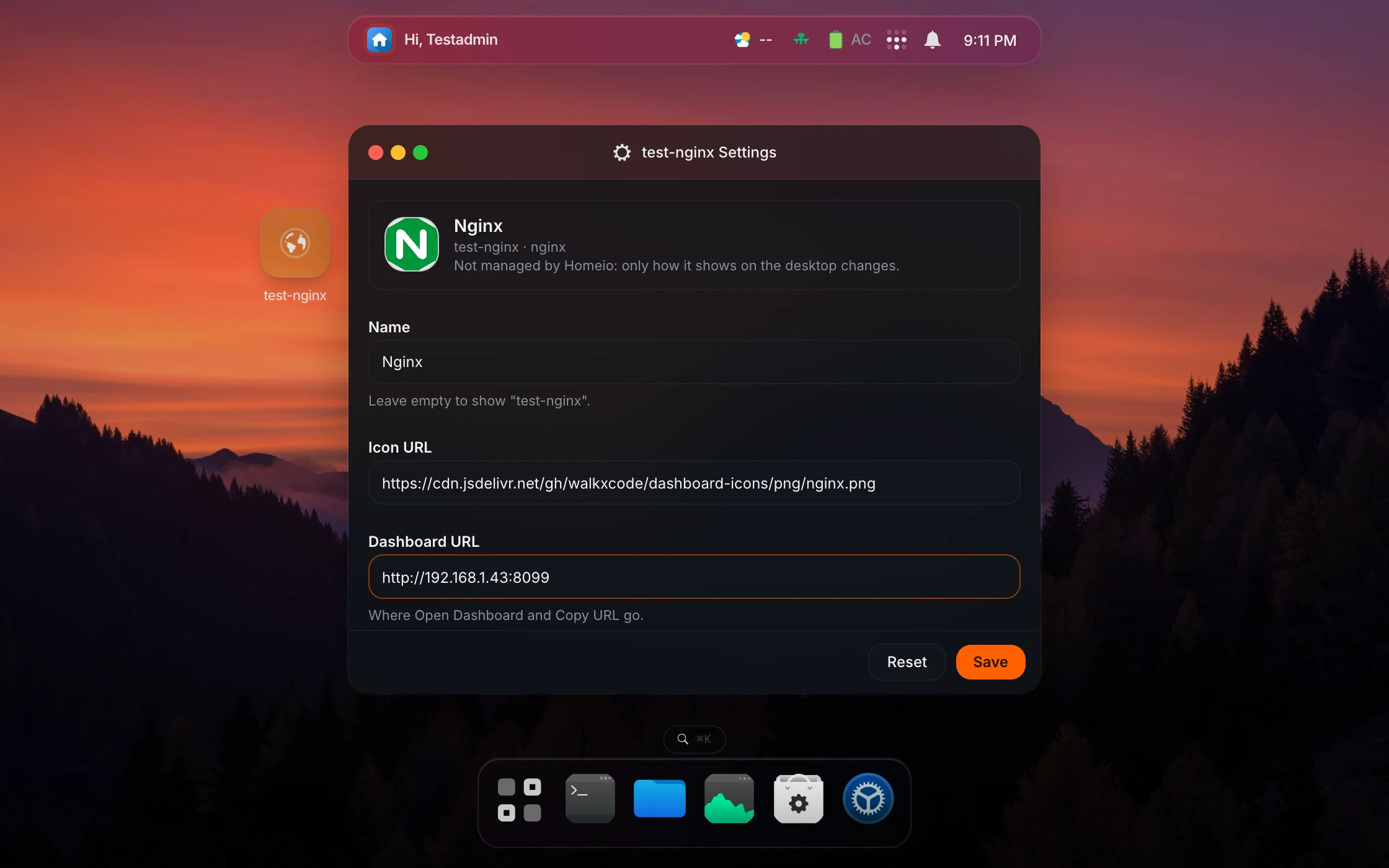
Containers you started outside Homeio show on the desktop under their Docker name with a generic icon. App Settings in their right-click menu now sets a display name and an icon URL, with a preview as you type.
A link that goes somewhere
Set the address the container serves and Open Dashboard and Copy URL use it. Homeio does not touch the container itself: logs, restart and the terminal still address it by its real name.
Kept when the container is recreated
The settings are stored by container name, not by its id, so they survive a docker compose up or a docker run that replaces the container. Reset clears them and brings back the defaults.
How to update.
On a script install, run the command below. It fetches the 1.10.2 update script, which also adds the nginx setting the Terminal needs. Update now in Settings installs 1.10.2 too, but runs the update script your server already has, so the Terminal only opens a shell after the next update.
curl -fsSL https://raw.githubusercontent.com/doctor-io/homeio/main/scripts/update.sh | sudo bashdocker compose pull && docker compose up -dQuestions about 1.10.2.
How do I update to Homeio 1.10.2?
Script installs: run the update command on this page. Docker installs: docker compose pull && docker compose up -d. Accounts, apps and settings are kept.
Update now finished, but the Terminal says Session ended. Why?
The shell runs over a WebSocket, and nginx needs a new setting to let it through. Update now in Settings runs the update script your server already has, which writes the old nginx settings. Run the update command on this page once, or update again with the next release, and the Terminal opens a shell.
Does the full terminal work in the Docker image?
Not yet. In the Docker image the Terminal keeps the previous command terminal, which runs one command at a time. The full shell needs the script install.
Who can open the Terminal?
Only someone signed in to Homeio, and only from Homeio's own pages. The connection is refused when it comes from another site or from another app on the same server, even if the browser holds a valid Homeio session.