
Getting started
If Homeio is not installed yet, start with the install guide. Then open it in a browser: http://homeio.local or the server's IP address after the install script, or port 12026 with Docker Compose.
The first visit asks you to create an account. It is the administrator account, and the only one: registration closes as soon as it exists.
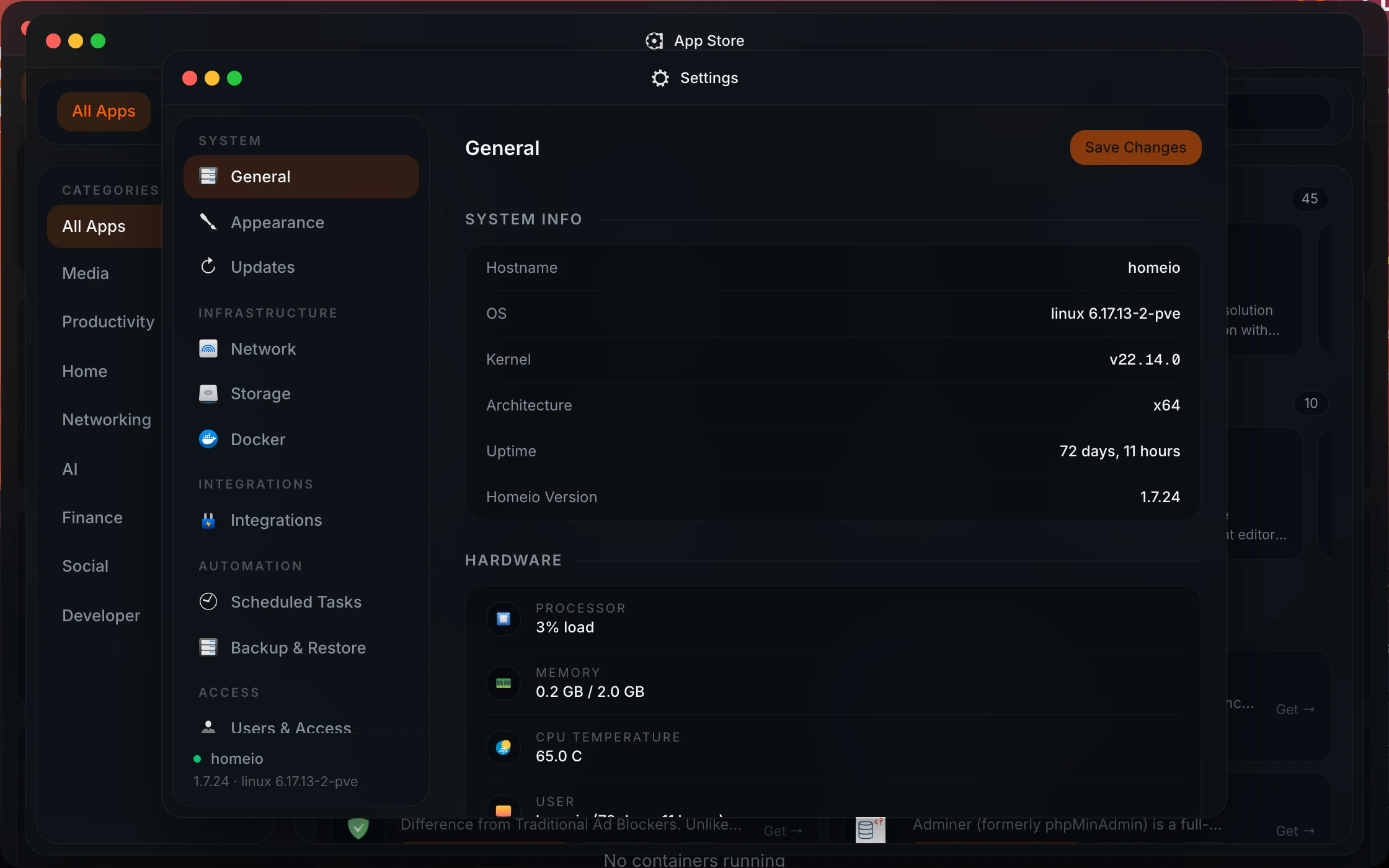
Homeio opens on a desktop. Apps open in windows, the dock keeps the ones you use, and the command palette (⌘K or Ctrl+K) finds apps, tools and settings by name. Most of what this page describes lives in Settings, grouped into sections such as Storage, Integrations and Backup & Restore.
Install and manage apps
Open the App Store, pick an app and install it. Each app is a Docker Compose stack: Homeio pulls its images, starts its containers and adds it to your desktop. Its data goes to /DATA/AppData/<app>.
- Catalogue. The default catalogue is the CasaOS app store. You can add other catalogues that use the same format as store sources in the App Store.
- Settings per app. Change an app's ports, volumes and environment variables before or after installing it, or edit its compose file directly.
- Logs. Each container's log streams live, with a keyword filter and a download button.
- Existing containers. Homeio shows the live stats of every container on the machine, including ones it did not deploy.
Some app templates ask for specific hardware, such as a Raspberry Pi GPU. If an install fails for that reason, remove the optional device from the compose file and install again.
Files, drives and shared folders
The Files app browses everything under /DATA. It uploads with progress, copies and moves several items at once, previews images, audio, video and PDF, and opens text files in a code editor.
- USB drives are detected when you plug them in, and you can mount, browse and eject them from Files. This needs
udisks2on the host, so it is not available inside Docker without extra setup. - Share a folder on your network by right-clicking it in Files and choosing Share Folder. Homeio shares it over Samba; the list of shares is in Settings → Storage → Shared Folders.
- Mount a network share from another NAS or computer over SMB, and browse it like a local folder.
- Disks are listed in Settings → Storage, where you can also partition and format them.
Terminal
The Terminal app is a full shell on the server, or inside a container, in a browser window. Anyone logged in to Homeio can use it, so treat your Homeio password like SSH access to the machine.
Remote access
Both options live in Settings → Integrations, and neither needs a port opened on your router.
- Tailscale puts the server on your private tailnet. Paste an auth key, and your phone and laptop reach Homeio and its apps from anywhere, privately.
- Cloudflare Tunnel publishes one app on a public hostname over HTTPS. Give it a Cloudflare API token and a domain, and Homeio creates the DNS record and the tunnel route for you.
The Tailscale remote access guide walks through the setup step by step.
Scheduled tasks
Settings → Scheduled Tasks runs jobs on a schedule without SSH or crontab: a shell script, an app restart, a backup, or pulling new Docker images. Each task shows when it last ran, and Run now starts it straight away.
Backup and restore
Settings → Backup & Restore backs up Homeio's database, your files and your app stacks on a schedule, and restores any backup from the same page. Choose the frequency, the time and how many backups to keep.
Backups are written to /DATA/Backups/homeio, on the same machine. Copy them to another disk or another machine as well: a backup on the same drive does not survive that drive failing.
Security
- Two-factor login. Turn it on in Settings → Users & Access. Keep the backup codes somewhere other than the server.
- Firewall. Settings → Security manages UFW: the default policy for incoming and outgoing connections.
- Intrusion prevention. Fail2Ban, in the same section, bans an IP address after repeated failed logins.
- HTTPS. Put Homeio behind a reverse proxy with TLS, or reach it through Tailscale or Cloudflare Tunnel. Homeio marks its session cookie secure as soon as requests arrive over HTTPS.
Updates
Settings → Updates checks for new versions every day and installs one with Update. If an update fails, Homeio tries to restore the previous version.
In-app updates are for the script install. On Docker Compose, run docker compose pull && docker compose up -d in the folder you cloned. Both are also on the install page.
Usage stats
Homeio sends a small anonymous ping twice a day: a random instance ID, the Homeio version, the CPU architecture, the OS, and whether it runs in Docker. The totals are public at homeio.app/stats. Turn it off in Settings → Advanced → Usage Stats, or set HOMEIO_TELEMETRY=false in Homeio's environment, which also locks the setting off.
Known limitations
- One account per installation.
- Wi-Fi and Ethernet settings need NetworkManager on the host.
- USB drives need
udisks2andudevon the host. - Shutdown from the UI turns the machine off; you need physical access to turn it back on.
- Factory reset deletes all Homeio data and cannot be undone.
Found a bug or missing something? Open an issue on GitHub.