
Homelab or home server: what is the difference?
A home server is there to be used: it stores the photos, streams the films, blocks the ads, and the household notices when it is down. A homelab is there to learn and experiment: virtual machines, networks, clusters, things you build and break on purpose.
Most people end up with both on the same hardware, and that is where trouble starts: an experiment takes down the photo backup. The fix is separation. Run the services people depend on in one place you leave alone, and experiment somewhere else, which is exactly what a hypervisor such as Proxmox is good at.
Hardware tiers
You do not need a rack. Power draw matters more than raw speed, because the machine runs all day, every day.
| Tier | Typical hardware | Idle power | Good for |
|---|---|---|---|
| Starter | Raspberry Pi 5, 8 GB, NVMe hat | 3 to 5 W | Docker apps, DNS, Home Assistant; no VMs |
| Sweet spot | Intel N100 or N150 mini PC, 16 GB, NVMe | 6 to 10 W | Docker apps, Jellyfin transcoding, a few LXC containers |
| Lab | Used business mini PC (i5, 32 to 64 GB) | 10 to 20 W | Proxmox with several VMs and containers |
| Storage-heavy | Tower with 4+ drive bays | 30 W and up | NAS, media library, ZFS |
Buy RAM before CPU. Containers and VMs are limited by memory long before a modern CPU becomes the bottleneck.
Which homelab OS: Proxmox or plain Linux?
| Choice | What you get | Pick it when |
|---|---|---|
| Debian or Ubuntu Server + Docker | One system, every app in a container, least overhead | One machine, mostly apps, you want it simple |
| Proxmox VE | A hypervisor: VMs and LXC containers, snapshots, backups of whole guests | You want to experiment without risking the services the house uses |
| TrueNAS or Unraid | Storage first, apps and VMs on top | The machine is mainly a NAS |
| umbrelOS, ZimaOS | An appliance with an app store | You do not want a lab at all, just apps |
A common, sensible layout: Proxmox on the metal, one LXC container running Docker and a dashboard for the everyday apps, and VMs next to it for whatever you are learning this month. A broken experiment never touches the photo backup, and Proxmox can snapshot the app container before every upgrade.
Worked example: Homeio in a Proxmox LXC container
This is how the Homeio team runs its own server. On the Proxmox host shell, fetch a Debian template and create an unprivileged container with nesting turned on, which Docker needs:
pveam update
pveam available --section system | grep debian-12
pveam download local debian-12-standard_12.7-1_amd64.tar.zst   # use the name the list shows

pct create 200 local:vztmpl/debian-12-standard_12.7-1_amd64.tar.zst \
  --hostname homeio --cores 2 --memory 4096 --swap 1024 \
  --rootfs local-lvm:32 --net0 name=eth0,bridge=vmbr0,ip=dhcp \
  --unprivileged 1 --features nesting=1,keyctl=1 --onboot 1
pct start 200
Open a shell inside the container and install Homeio. It brings Docker, PostgreSQL and Nginx with it:
pct enter 200
apt update && apt install -y curl
curl -fsSL https://get.homeio.app | bash
Give the container a DHCP reservation on your router, open its address in a browser, and create your account. Before each big change, take a snapshot from the Proxmox host so you can roll back in seconds:
pct snapshot 200 before-upgrade
# and if it goes wrong:
pct rollback 200 before-upgrade
Inside an LXC container some host features are limited: SMART data and disk partitioning belong to the Proxmox host, not to the container. Pass storage in as a mount point (pct set 200 -mp0 /tank/media,mp=/DATA/Media) rather than trying to manage disks from inside.
First homelab projects, from easy to ambitious
- 1.Network-wide ad blocking with AdGuard Home or Pi-hole. Useful on day one, and it teaches DNS.
- 2.Deploy a web server. Run one container, reach it on the LAN, then reach it from your phone over Tailscale (example below).
- 3.Monitoring: Uptime Kuma for services and Beszel for machines, with notifications to your phone.
- 4.A reverse proxy with HTTPS (Caddy or Nginx Proxy Manager) in front of your apps, with a local domain such as home.lan.
- 5.Backups that you have restored: Proxmox Backup Server for guests, restic for data, one copy off-site.
- 6.Infrastructure as code: move your compose files into a git repository and redeploy the whole stack from it.
Project 2 in practice. Start a web server on port 8080, check it from the server itself, then from your laptop:
mkdir -p ~/site && echo '<h1>Hello from my homelab</h1>' > ~/site/index.html
docker run -d --name site --restart unless-stopped -p 8080:80 -v ~/site:/usr/share/nginx/html:ro nginx:alpine
curl -s http://localhost:8080
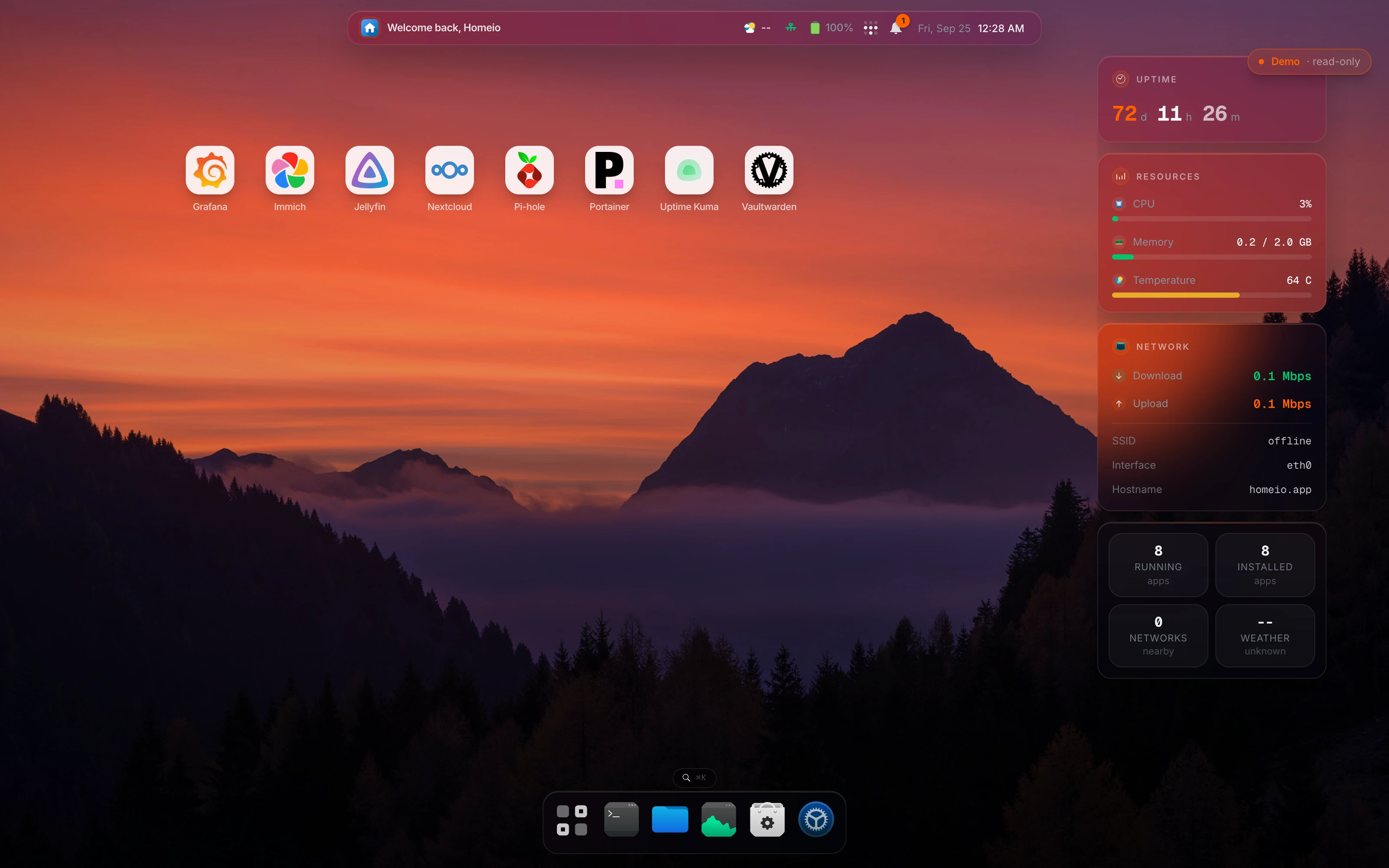
Then open http://server-ip:8080 from another machine on the network. With Tailscale on the server and on your phone, the same page opens at http://server-name:8080 from anywhere, with no port forwarded on the router. In Homeio the container shows up on the desktop, where you can name it, give it an icon and a link.
Keep the lab manageable
- Write down what you set up and why, in a wiki such as BookStack or a plain git repository. Six months later you will not remember.
- Keep compose files and configuration in one folder (/DATA/AppData or a git repo), so a rebuild is a copy and a docker compose up.
- Update on a schedule, not when you remember: weekly image pulls, monthly OS updates, after a snapshot.
- Never forward ports for the dashboard or SSH. Use Tailscale or WireGuard for yourself, and a tunnel for the one app you share.